
Azeroth Survivors mobile: Android, iPhone & iPad
By azeroth-survivors.online · Updated
Play opens the creator’s browser game in a new tab. You need WebGPU and a usable graphics adapter. Turn your device sideways once the game opens, then test movement and upgrade selection before a longer run.
If the original game won’t open, you can try the 60-second Emberwatch arena. It’s a separate WebGL 2 game with a touch joystick and its own local score.
Can I play on my phone?
iPhone and iPad: Safari 26 supports WebGPU, but that alone does not guarantee this game will run on your device. Check your browser and graphics adapter, then test the game’s touch controls. We have not verified a complete run on a physical iPhone or iPad.
Android: Start with an up-to-date version of Chrome and run the device check. Browser and graphics support vary by device; check movement and upgrade selection before committing to a longer run.
Installation and progress: The game opens in a browser; this site does not offer an APK or iOS app. Before changing browsers or devices, see the save and backup guide.
Got a red graphics-card warning on Android? Compare it with our phone test before changing settings or clearing game data.
Get help if the game won’t open. If you already have a character, back up your save before switching devices or browsers.
Start on your phone without losing your old save
- Back up on the device that still has your character. Use the game's save export control and keep that file. A different phone, browser or profile can open with different stored progress. Follow the save backup and import guide before moving.
- Update your browser and operating system. Use Chrome on Android or Safari on iPhone and iPad as the starting browser for the platform checks below. If you followed a link from another app, open the game address in the browser itself.
- Run the local WebGPU and adapter check. It can identify a missing startup requirement right here in this guide. An available adapter does not certify the game or touch controls.
- Open the creator’s page directly. Use the Play button at the top of this guide. The game runs in its own browser tab.
- Turn the device sideways and tap the game page. Allow rotation in your device settings if it is locked. The launcher attempts fullscreen and landscape on touch-oriented devices where the browser permits them.
- Wait while the loading counters move. The client download and game data can appear separately. Use the loading counter guide if the screen stays on a download message. Once the game opens, check movement and one upgrade using the touch checklist.
Keep the original export until you have checked your character and progression on the destination device. Changing browser is a troubleshooting step that also changes where you look for a save.
Check WebGPU on this device
Run this check in the browser you plan to play in. It checks this page's secure connection, WebGPU and an available graphics adapter. It does not load the game, inspect GPU details or send your results.
Ready when you are. No check has run.
Emberwatch is a separate 60-second survival game. It uses WebGL 2 and has its own score. See the Scout Trial running on our Android test phone.
- Secure context: Not checked
- WebGPU: Not checked
- Graphics adapter: Not checked
If the game stops loading, use the matching on-screen error to find the next step.
Android, iPhone and iPad browser requirements
| Device | Where to start | What still has to work |
|---|---|---|
| Android phone or tablet | Current Chrome. Google documents WebGPU's Android rollout from Chrome 121 on Android 12 or later, with Qualcomm and ARM GPUs. | The browser must expose WebGPU and return a usable graphics adapter. Other GPU, driver and browser combinations need their own check. |
| iPhone | Current Safari on a supported iOS version. WebKit shipped WebGPU in Safari 26.0 for iOS. | The game must obtain a usable adapter and keep running. Fullscreen availability is a separate issue from WebGPU support. |
| iPad | Current Safari on a supported iPadOS version. WebKit shipped WebGPU in Safari 26.0 for iPadOS. | Check the actual launch and screen layout. A larger display does not establish GPU compatibility or stable performance. |
The creator checks both WebGPU availability and the graphics adapter before starting the client. That is why two phones running the same browser version can behave differently. The Chrome WebGPU overview and Safari 26.0 release notes describe the browser API, rather than certifying this game on a particular phone.
On Android, the current launcher uses lighter material rendering and avoids preparing every graphics-pipeline variant at launch by default. These changes address phone graphics-driver problems; leave the normal game URL unchanged for your first attempt.
Landscape, fullscreen and touch-screen space
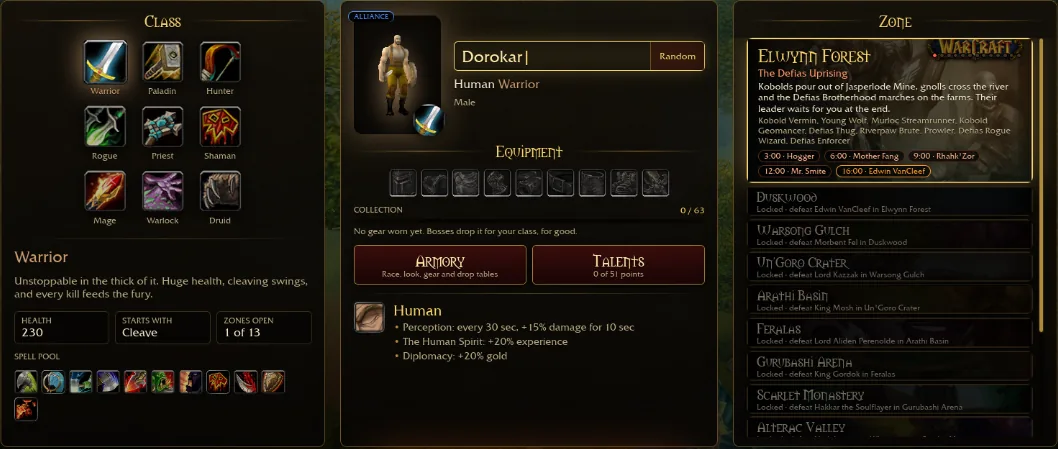
Check movement and one upgrade before a longer run
- Menu input: open the game in its own browser tab and use its current on-screen prompts. Check that taps select the intended menu control.
- Movement: start a run and confirm the movement input shown by the game actually moves your character. A visible class menu alone does not verify touch gameplay. Check that browser bars or screen edges are not covering the controls.
- Upgrade selection: when the game offers an upgrade, check that you can read and select the intended card. If movement or selection does not work reliably, stop that test and keep the previous save backup before trying a different browser or desktop.
Repeat this short check after changing browser, orientation or input device. These are checks for your own device, not a claim that a physical-phone run has been verified here.
Landscape gives the game more horizontal space. Release a tap on the game page: on devices identified as having a coarse pointer, the launcher requests fullscreen and then landscape orientation. It catches a rejected request, so a browser can leave you in a regular tab without that rejection itself stopping startup.
If the screen does not rotate, check your device's orientation lock and rotate it manually. If the address bar stays visible, continue checking the game in that layout. Repeatedly reloading does not add a fullscreen feature that the browser lacks.
Android 16 phone test: the launcher stopped before class selection
On November 21, 2026, we opened Aethus’s original game on a PKB110 phone running Android 16 in the built-in HeyTap Browser 40.10.25.2. The launcher displayed “WebGPU found no usable graphics card.” It stopped before the class menu, so movement and card selection could not be tested on this setup.
If you see the same message, the Windows graphics settings it lists apply to a PC. On the phone, use the device check in the browser you intend to play in. If it reports no adapter, keep any existing progress in its current browser and try another WebGPU-capable browser or device. Clearing game data can put your save at risk.
HeyTap exposed WebGPU, but its default, low-power and high-performance adapter requests all returned null. On the same phone, WebGL 2 drew a test pixel on the Mali-G925-Immortalis MC12 and returned the expected color.
Playing the Emberwatch Scout Trial on the same phone
We opened the Emberwatch practice arena, chose the one-minute Scout Trial and tapped Enter the clearing. When the first blessing screen appeared, we tapped Sunburst. Combat resumed with “Sunburst gained” on screen. At 18 seconds the Keeper was level 2 with 39 kills. This run tested touch selection and the return to combat in HeyTap.
What our Android-style browser simulation showed
On November 1, 2026, we opened the original game in desktop Chrome with an Android user-agent, touch emulation and a phone-sized viewport. The game downloaded its startup data and reached the class-selection menu. A first dark or plain screen can be part of that loading sequence; check whether the displayed progress is still advancing before retrying.
In that simulation, synthetic taps did not reliably change the selected class. The browser session also changed viewport while loading, and an installed browser extension covered part of the screen. We could not isolate the cause, enter a run or verify movement and upgrade selection. This was not an Android device test and does not prove that touch works or fails on your phone.
iPhone and iPad behavior can differ. When the required fullscreen methods are absent, the launcher provides an empty fallback to avoid a startup error. That fallback cannot create fullscreen support or promise landscape locking. Judge the available screen space on your device before beginning a long run.
Use the game's visible touch prompts. This guide has checked the launcher's screen handling, not a complete set of mobile control gestures. If a control is unreachable or movement does not respond, note the device, browser and screen orientation before reporting it through the creator's Discord.
Match a loading error to the next step
| What you see | What to do next |
|---|---|
| “Fake website detected!” | Open wow.aethus.pl directly. This is the embedding restriction, not evidence that your phone lacks WebGPU. If you played in an older frame, recover its save first. |
| “This browser has no WebGPU” | Check the browser and OS against the platform notes above. Update and reopen the original page. Follow the WebGPU checks if the warning remains. |
| “WebGPU found no usable graphics card” | The API exists, but the browser could not supply an adapter. Record the device and browser version; use the adapter explanation. Windows GPU-selection instructions in that message apply to a Windows computer, not to your phone's settings. |
| A phone graphics-driver or “device lost” warning | The creator's launcher advises reloading. Keep the exact message. If it repeats, report the device and browser through the creator's community; the launcher retains diagnostic information in the browser console. Do not clear site data as a first response. |
| “Too many people” or HTTP 429 | This is a host limit. Wait and try later, or use the creator's offered alternatives. Switching between guide websites does not bypass it. See busy-server help. |
| A black screen without a useful message | Give the first resource download time to progress. If it stops, note any error and follow the black-screen sequence. Protect the save before changing browsers or removing stored data. |
If mobile play keeps failing, a desktop with a compatible browser is another way to try the original game. Back up before moving. The beginner guide explains the basic run loop once you can enter the game.
Browser game, APK searches and Windows downloads
An Android APK is an app package; it is not required for the browser route described here. This fan guide does not provide an APK, an iPhone app or a mobile installer. Open the creator's page to check its current supported choices.
The inspected creator page offers a Windows download. That package is not an Android or iOS app. Running a Windows program through a separate compatibility tool is a different setup path, and this guide has not tested one or established that its saves transfer.
To start in a phone browser, use the original page and the error checks above. For a computer download, follow the link on Aethus's page so the creator controls the current file.
Sources and what we checked
Launcher rechecked November 5, 2026: the creator’s page references launcher f3a3d645a1ed. Its published startup code still checks WebGPU and an adapter, blocks framed play and offers recovery export when saved progress is found. This is a startup-code review, not a completed current-build run or a physical-phone test. Gameplay references are historical observations.
Reviewed October 24, 2026 against the creator's page and its browser launcher, stamp 402080508d86. The source checks WebGPU and an adapter, attempts fullscreen and landscape on coarse-pointer input, provides a fallback for missing fullscreen methods, and sets Android defaults pipe_warm=0 and pbr_lite=1.
Browser support references: Google's WebGPU overview and WebKit's Safari 26.0 release notes, read October 24, 2026. These support the platform requirements, not a game-performance claim.
On November 21 our physical Android phone stopped at the graphics-adapter check. The November 1 desktop simulation reached the class menu. Neither session reached touch-controlled combat. A full run on iPhone or iPad and mobile frame rates remain untested. Check the message on your own device against the examples above.